In the app
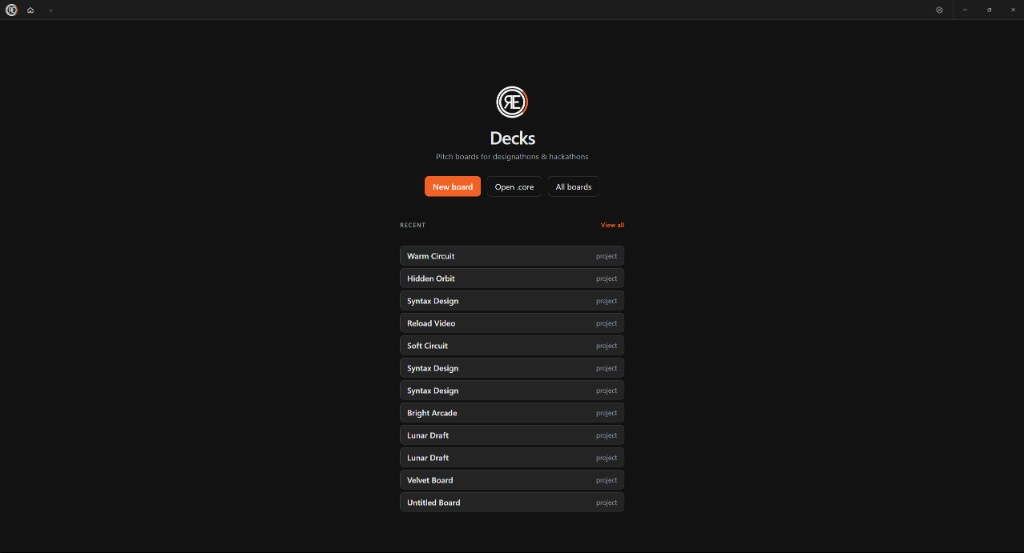
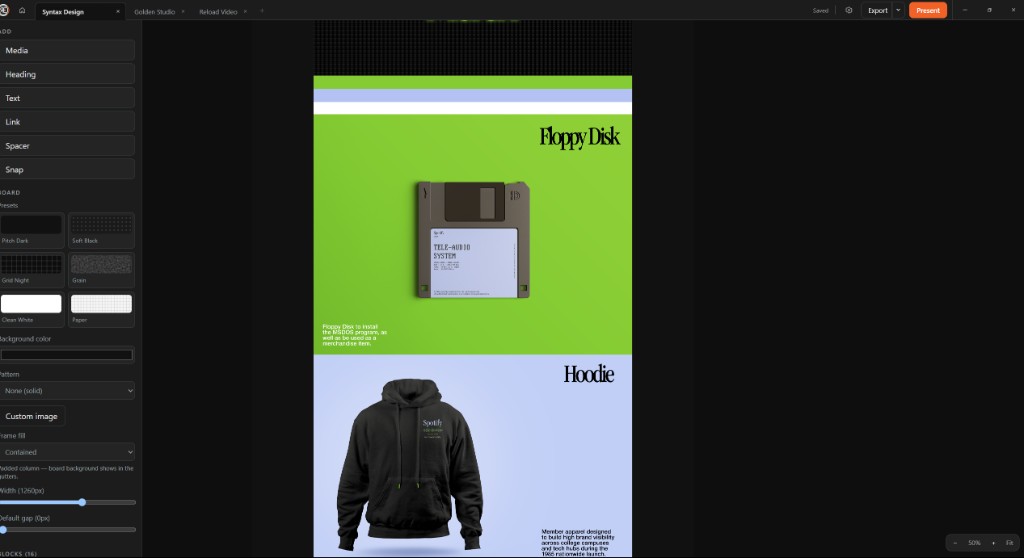
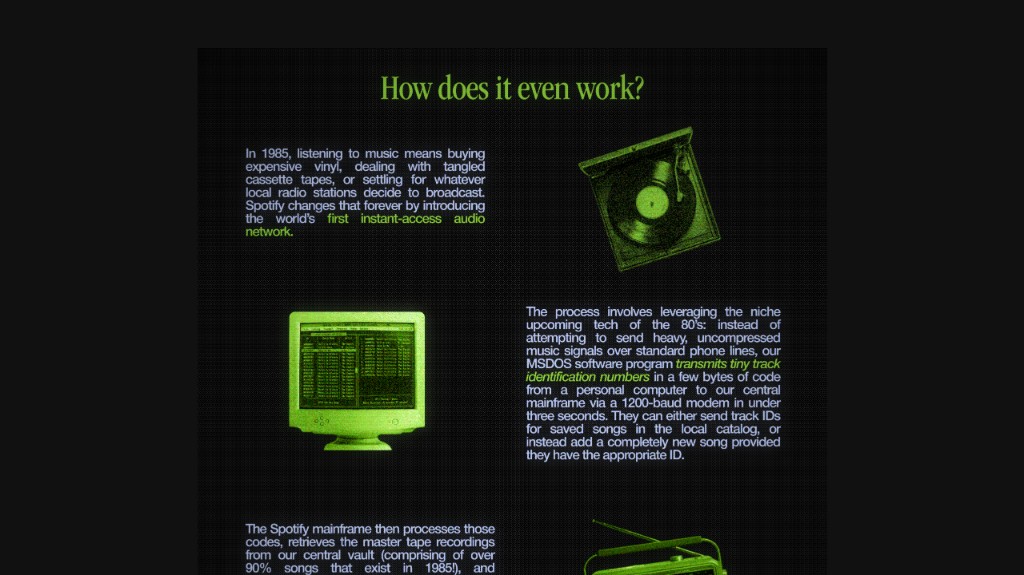
Home, editor, and present. Built for designathon laptops and USB sticks.
How it works
Build a board once. Present anywhere the file goes.
Import frames
Drop Figma exports onto the board as your deck snaps. Each frame becomes a slide you can reorder.
- PNG & JPEG drops
- Snap to board
- Reorder freely
Add blocks
Layer text and link blocks where the pitch needs them. Keep the story tight without leaving the board.
- Text overlays
- Clickable links
- Frame-aware layout
Present
Media preloads locally, then fullscreen with snaps and arrows. Works offline on designathon Wi‑Fi.
- Local preload
- Fullscreen snaps
- Arrow navigation
The .core format
A .core file is a package: manifest.json, assets/, and Present.html. Open it in DECKS to edit. You do not need DECKS installed to present one.
{
  "title": "Lunar Draft",
  "version": 1,
  "frames": [
    { "id": "f1", "src": "assets/frame-01.png" },
    { "id": "f2", "src": "assets/frame-02.png" }
  ],
  "blocks": [
    { "type": "text", "frame": "f1", "body": "Opening beat" },
    { "type": "link", "frame": "f2", "href": "https://example.com" }
  ]
}
Try a sample board
Download Lunar Draft and open the .core in DECKS.
Present without DECKS
.core files work on any PC with a browser. No DECKS install required.
- Rename
board.coretoboard.zip - Right-click → Extract All (full extract, not the zip preview)
- Open
Present.htmlfrom the extracted folder
Opening Present.html from inside a zip preview breaks images and video. Always Extract All first.